Set up Login/Registration in an iFrame
Clients occasionally like to implement a login/registration page from their company website using an iframe.
Instructions
Follow these steps to login or register from a third party website …
Login as an Administrator and go to System Setup/Defaults/Settings.
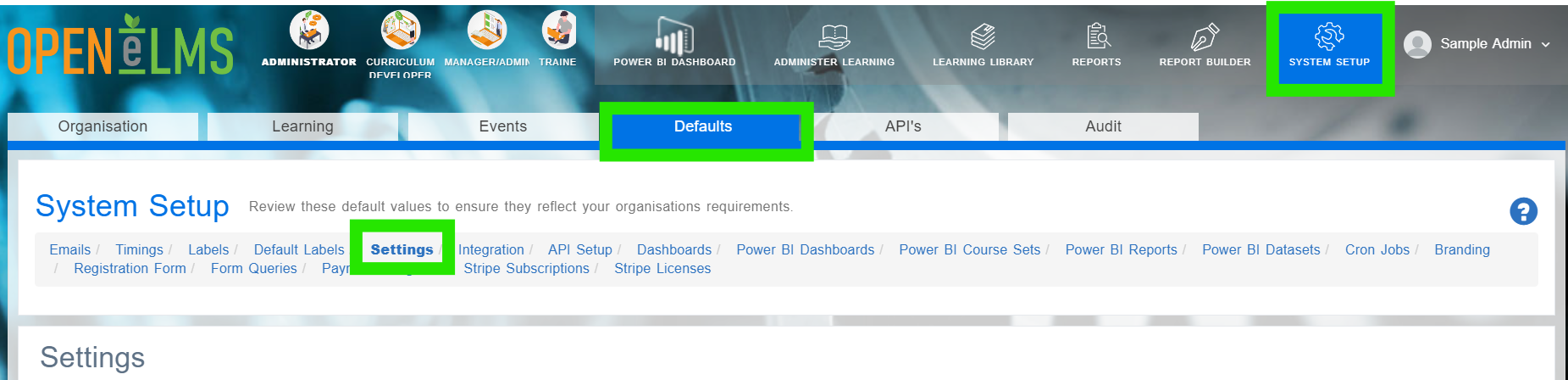
Search in the Name column for allowIframeEmbedFromDomains.
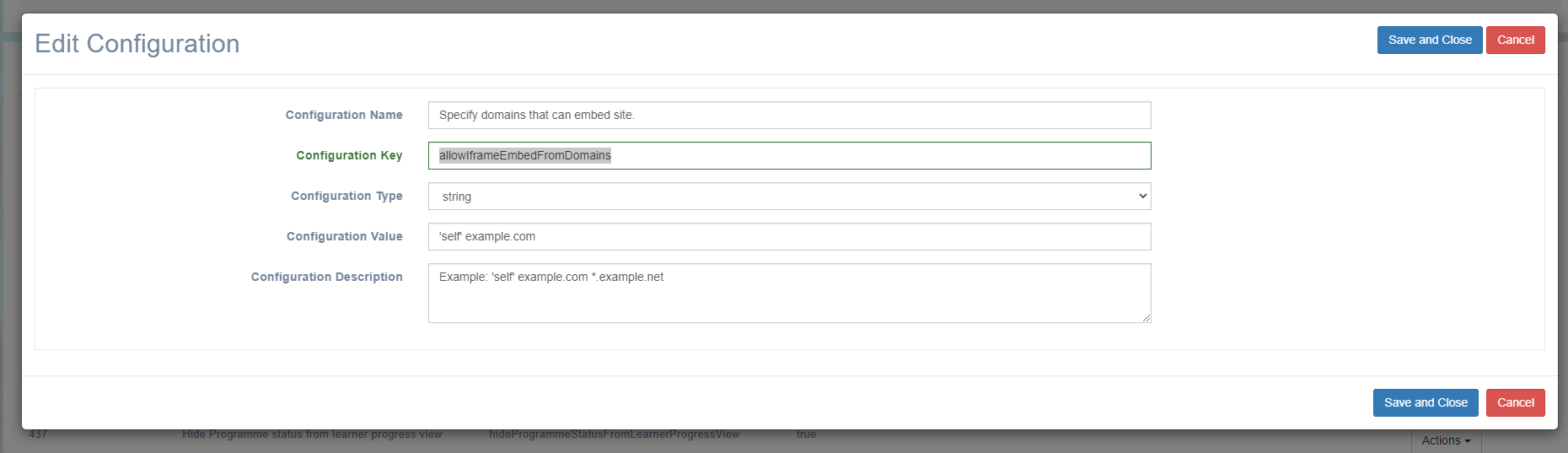
Click on Edit.
Scroll down and find the correct key in the settings category.
Enter your website domain as a configuration value for the Configuration Key allowIframeEmbedFromDomains
Contact support@elearningwmb.com to change apache settings to allow site to work in an iframe - this may take 24 hours to resolve.
Enter the embed code below into your website:
For registering enter …
<iframe src="https://openelms.e-learningwmb.co.uk/yourdomainname/register" width="100%" height="100%" frameborder="0"></iframe>
For logging in enter …
<iframe src="https://openelms.e-learningwmb.co.uk/yourdomainname/login" width="100%" height="100%" frameborder="0"></iframe>
Related articles
- Page:
- Page:
- Page:
- Page:
- Page: